 Tower & Mercenaries
The tower
Scouting
Scouting lets you inspect enemy classes and positions before battle. Improve the Scouting Corps to reveal more enemies; in the abyss, you can encounter a mutation that blocks scouting.
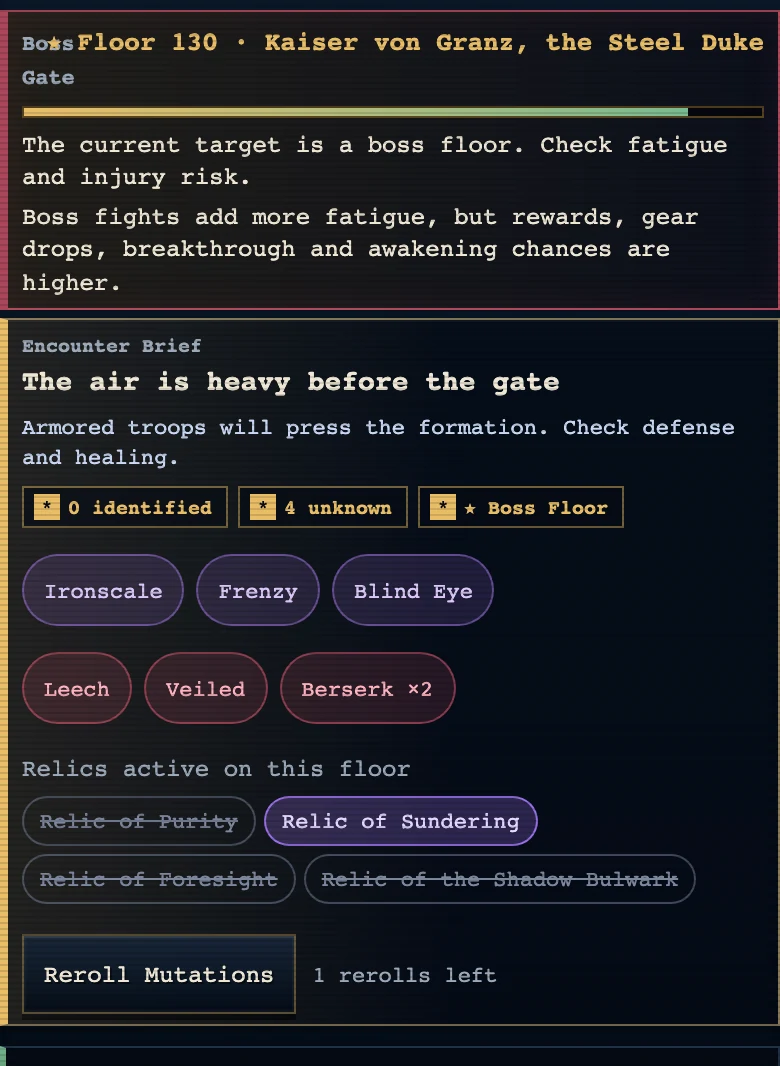
Prepare an expedition in "Tower" and press "Depart" to open the scouting screen. Check the revealed enemies and the count of hidden foes, then press "Start Battle" to fight.
Read the intel while choosing a party for an unfamiliar floor or one that defeated you. Against enemies that target the back row, check your healer’s protection; against mutations, review the mercenaries and relics that counter them.
Quick Climb
With Quick Climb on in the Battle tab of Settings, a won tower battle moves on to the results screen by itself after a moment. On the results screen, ▲ skips scouting on ordinary floors and opens the next battle right away. It starts on.
Boss floors, floors with a risky or deadly forecast, and floors that start a new zone still stop at scouting. So do floors after a member falls, a retry of a floor you lost, and event expeditions such as bond quests. The line under ▲ tells you whether the next floor will stop.
Marks on this screen
Zone trait banners. The illustrated banner in the Tower and scouting screens names the enemy’s zone trait. These traits appear from floor 101, with the effect written below the banner.
Ironscale icon. This zone trait raises enemy defense. Check the counter slots below the illustration for coverage.
Veil icon. This zone trait raises enemy evasion. Check the counter slots below the illustration for coverage.
Split icon. This zone trait makes fallen enemies split into more enemies. Check the counter slots below the illustration for coverage.
Regeneration icon. This zone trait lets enemies recover health. Check the counter slots below the illustration for coverage.
Cursed Fog icon. This zone trait reduces healing received by your party. Check the counter slots below the illustration for coverage.
Frenzy icon. This zone trait raises enemy attack and lowers enemy defense. Check the counter slots below the illustration for coverage.
Rear Hunt icon. This zone trait makes enemies target your back row first. Check the counter slots below the illustration for coverage.
Venom icon. This zone trait deals poison damage to your party. Check the counter slots below the illustration for coverage.
Filled and empty counter slots. Filled orbs on the zone card count covered counter slots; empty orbs show gaps. Tap the slot row to reveal the contributing mercenaries.
Zone trait states. Countered means the zone trait has been shut down. Weakened means partial coverage, while Active means the trait remains in effect.
Stuck zone. This badge in specialist training points to a trait in the zone blocking your climb. Support activates after 4 weeks and 2 wipes in that zone.
Coverage count. The coverage fraction counts recommended counters supplied by your party. Read the missing counters line to find a role to add.
Battle forecast bar. The forecast bar compares allied and enemy combat power. Check its warnings and your lineup when judging the matchup.
Forecast marks. A crimson exclamation flags a forecast risk; a jade plus marks an advantage. A question mark labels another assessment; tap the chip for the reason.
Value tables: Battle forecast · Scouting and difficulty